All
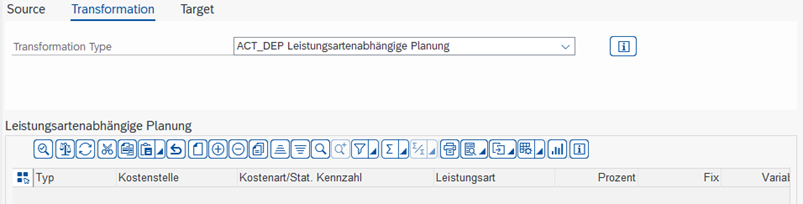
[ToDo]
AGGREGATE - Aggregating Table Data
The transformation aggregates based on key fields to be defined. All rows with the same key combination are consolidated into one row. Fields with numerical values can be summed up. All other fields are either initialized, i.e., set to blank or 0, or a value is copied.
Important The copy function is only useful if the field values are unique in relation to the key fields. Otherwise, typically the last value for this key is copied to the Target.
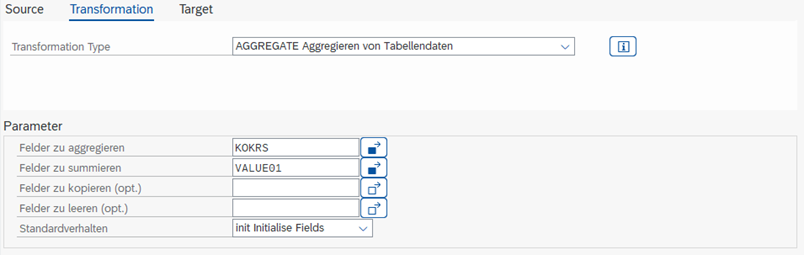
| Fields to Aggregate | Selection of key fields by which the data should be aggregated |
|---|---|
| Fields to Sum | Selection of fields to be summed, this is only possible for the following data types: • INT4 - Integer (I) • FLTP - Binary Floating-Point Numbers (F) • DEC - Packed Numbers (P) |
| Fields to Copy | Fields that should be copied. The last of the aggregated entries is copied to the target. This can be useful if the texts for a key should not also be used as a key, e.g., Cost Center description. If not ALL rows within the used keys are identical, this is of limited use, as an arbitrary value within the keys will then be used. |
| Fields to Clear | The field is cleared during aggregation. If a field has several different values within the key, this field is no longer unique and should therefore be removed. |
| Standard Behavior | Setting for how the remaining fields should be handled: Copy - Copy fields Init - Initialize/Clear fields |
COPA_MAP - COPA Mapping of Source to Target Fields
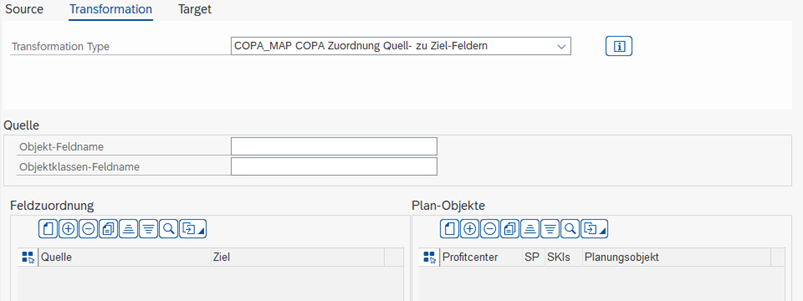
[ToDo]
COPY - Copying Table Data by Column Index
The transformation copies data 1:1 from the Source to the Target, meaning values in column 1 of the Source are copied to column 1 of the Target. This function is typically used to copy a Source to a Shared Memory of the same Source Type.

No configuration is required for this transformation.
Important The fields in Source and Target must each have the same data type.
ENRICH - Enriching Table Data
The Enrichment function, known from Allevo, is also available in Kyra Stream. Here, the fields of the Source are first automatically mapped to the corresponding fields of the Target. Values can be retrieved from any table via a key comparison and also transferred to the Target.
An example could be Cost Center texts that should be transferred to the Target depending on the logon language and the Cost Center number.
Source Selection Tab
This tab defines which table should be read and by which criteria entries are found.
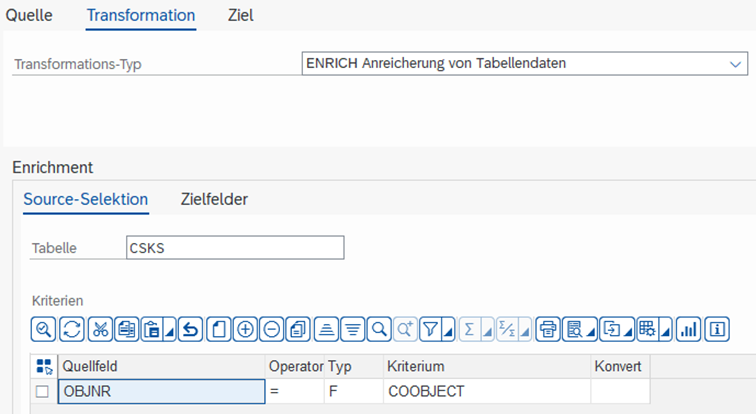
| Table | Source table from which the data should be read. For Satellites and SunTables, the corresponding Groundtable must be specified. |
|---|---|
| Criteria | Criteria by which the data should be selected. These are usually the key fields of the corresponding source table. |
Target Fields Tab
This tab defines which field from the table (Source) is mapped to the field in the Target (Target field). If required, a formula can also be applied and a pattern used.
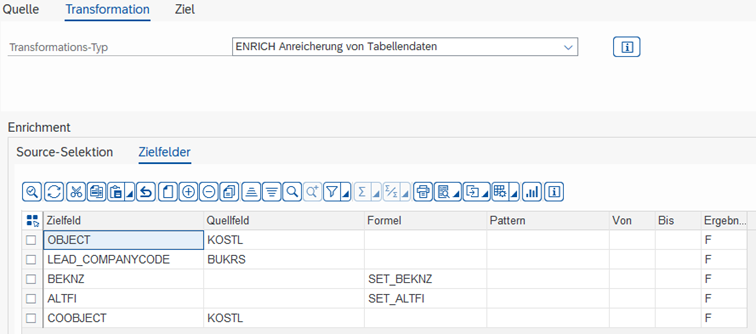
| Target Field | Field that should be changed in the target. |
|---|---|
| Source Field | Field from the source table that should be used to populate the target field. |
| Formula | With F4 key, an existing formula can be selected. With SHIFT+F2 key, you enter the Formula Editor to change a selected formula or create a new one. |
| Pattern | With the help of a pattern, several numbered fields can be filled with the same formula or the same source field. Example: Using the pattern MONTH. In the target field, VALUE(MONTH) can now be entered, for example, to change fields VALUE01 to VALUE12. |
| From/To | From which value to which value the pattern should run through. In the example, 1 to 12. |
EXPAND - Expanding Source Data via Intermediate Table into Target Table
The Expand is a special transformation that, in principle, multiplies 2 tables (Source and Intermediate) with each other: If the table from the Source contains 10 rows and the Intermediate contains 5 rows, 50 rows will be generated from them.
One application is the valuation of a table with planned sales data using manufacturing cost data (material price, material overhead cost price, production cost price). In the first row, the sales quantity must be multiplied by the material price, in the second row the sales quantity by the material overhead cost price, and so on. The problem here arises immediately: the planned sales data in the Source contains not just one material but several, and the manufacturing costs in the Intermediate do not contain the manufacturing costs of only one material. Therefore, it must be possible to compare the key values of both tables and only multiply the rows where the material number of the row is identical to the rows in the Intermediate.
Parameters Tab
The Parameters tab defines which Shared Memory should be used as Intermediate. It can then be defined which fields from Source and Intermediate are compared with each other. If required, this can also be done using a formula.
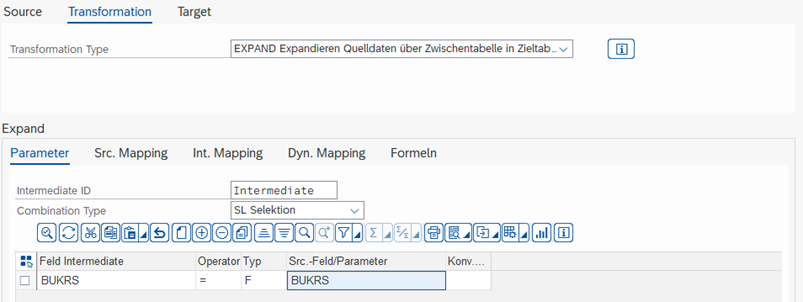
| Intermediate ID | Specification of the Shared Memory object that should be used for the Expand |
|---|---|
| Combination Type | Select either SL Selection or XF Formula |
| Select Formula | (only for XF Formula) Formula by which the rows should be selected With F4 key, an existing formula can be selected. With SHIFT+F2 key, you enter the Formula Editor to change a selected formula or create a new one. |
Functionality of Selection Formulas If the result of the formula is true or "1", then the Intermediate row is adopted for the Source row; otherwise, it is not.
Examples for Formulas
| 1=1 | Since the result is always true, all rows from the Intermediate are always used. |
|---|---|
| SRC-BUKRS = INT-BUKRS | Only the rows of the Intermediate are created per Source row where the BUKRS field is identical. |
| IF INT-GJAHR >= SRC-GJAHR THEN 1 ENDIF | Only the rows of the Intermediate are created per Source row where the GJAHR field is greater than or equal to the GJAHR field in the Source. |
Source Mapping Tab
This tab defines which field from the Source is mapped to which field in the Target. This is analogous to the MAP_FIELDS transformation.
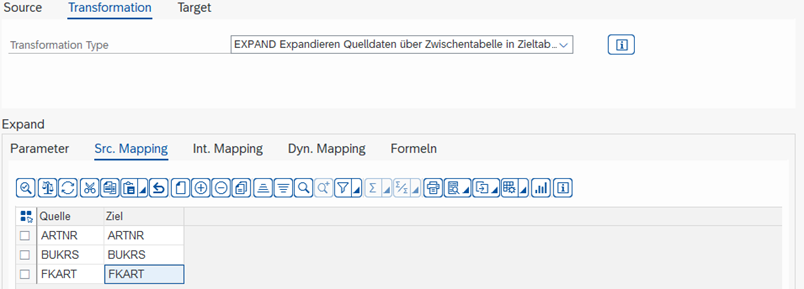
| Source | Field in the source structure |
|---|---|
| Target | Field in the target structure to which the source field should be assigned |
In the Source, there are 2 special functions, analogous to the MAP_FIELDS transformation:
- Fixed Value: If the text is in single quotation marks, for example '1', the entry is interpreted as a value instead of a field.
- Offset: If the field name is followed by a "+", for example FELDNAME+6(10), this is interpreted as an offset and length: from "KS10000000001000", the first 6 characters are removed and the remaining 10 characters are used, in the example "0000001000". FELDNAME+6 uses everything after the 6th character, FELDNAME(4) uses the first 4 characters.
Intermediate Mapping Tab
This tab defines which field from the Intermediate is mapped to which field in the Target. This is analogous to the MAP_FIELDS transformation.
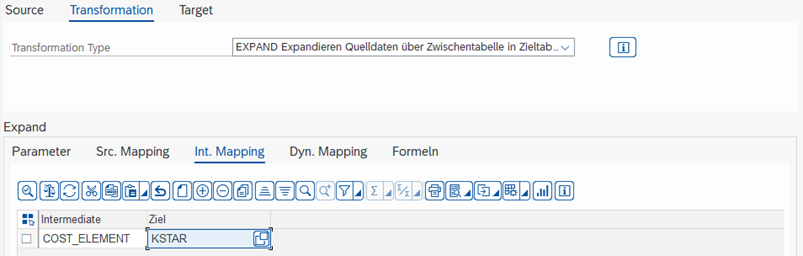
| Intermediate | Field in the Intermediate table |
|---|---|
| Target | Field in the target structure to which the Intermediate field should be assigned |
Dynamic Mapping Tab
This tab can be used to define which field from the Source is mapped to the field in the Target, depending on the value in the field in Intermediate.
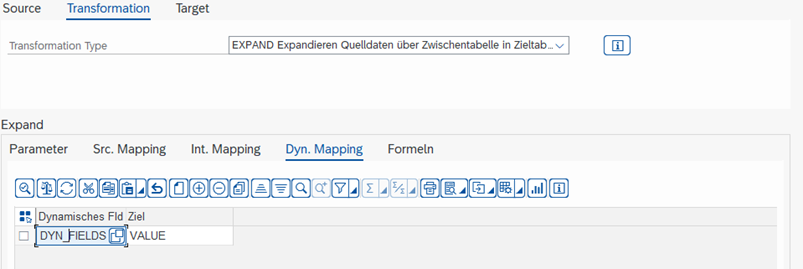
Visual Example
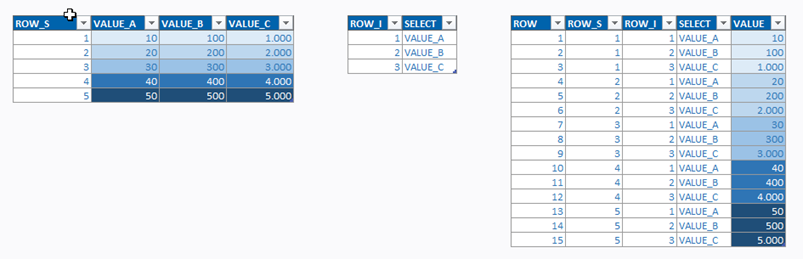
The values of fields VALUE_A, VALUE_B, VALUE_C are transferred to the VALUE field. For Intermediate row 1, VALUE_A is used, for row 2 VALUE_B, and for row 3 VALUE_C.
Formulas Tab
In this tab, formulas can be defined whose results are written into a field in the Target, e.g., "sales quantity x material price".
Using the Pattern field, values can be iterated through, e.g., 1-12, to avoid having to create a separate formula for each field from Value01 to Value12. During execution, each value from 1 to 12 is iterated through, and the entry MONTH is replaced with the value each time.
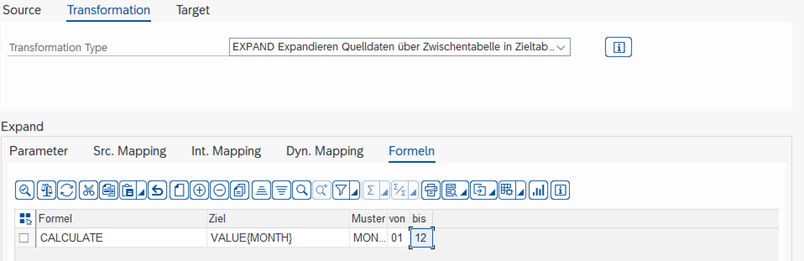
| Formula | With F4 key, an existing formula can be selected. With F2 key, you enter the Formula Editor to change a selected formula or create a new one. |
|---|---|
| Target | Field that should be changed in the target. |
| Pattern | With the help of a pattern, several numbered fields can be filled with the same formula or the same source field. Example: Using the pattern MONTH. In the target field, VALUE_W_(MONTH) can now be entered, for example, to change fields VALUE_W_01 to VALUE_W_12. |
| From/To | From which value to which value the pattern should run through. In the example, 1 to 12. |
The formulas are executed in the order of their creation.
Note To change the order of the formulas, you can move the row in the ALV to the desired position by drag & drop.
FEEDBACK - Feedback from the Target Object
This is a special form of transformation. For some Target Types, it is necessary to process a returned result, e.g., whether the creation of a Cost Center was successful. This transformation can adopt this information from the Target Type of an Action and save it in the Target, similar to the Enrichment transformation, provided the Target Type offers this. Currently, all Target Types for the creation of CO master data support this function (see Chapter 6.7).
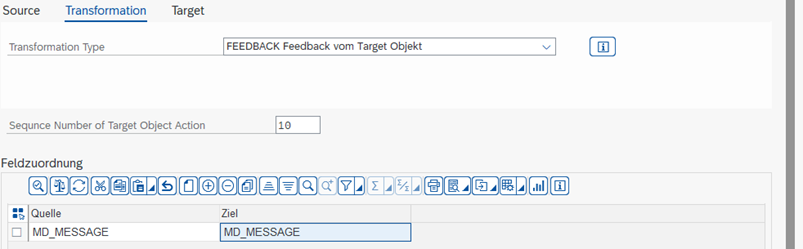
| Action | Action, from whose Target Type the result should be read |
|---|---|
| Field Assignment | Source field from the Action and target field to which the result should be transferred |
FILTER - Filtering Data
Within a Process, it is occasionally necessary to filter data, for example, to post only the valid rows. The transformation can either pass the filter result to the Target or remove the rows that match the filter and pass the remaining rows.
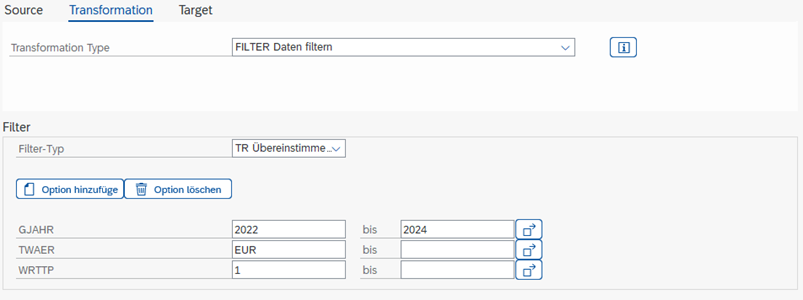
| Filter Type | DE - Delete matching rows TR - Transfer matching rows |
|---|---|
| Add Options | Select fields to filter from the Source fields |
| Delete Options | Remove selected filter option |
MAP_FIELDS - Mapping Source to Target Fields
The transformation offers the greatest flexibility when copying data. For each field of the Source, it can be defined to which field of the Target the values should be copied.
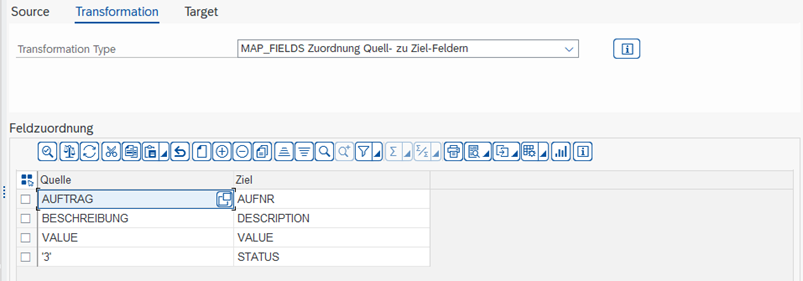
| Source | Field in the source structure By using single quotation marks 'Example', constants can also be assigned to a target field. |
|---|---|
| Target | Field in the target structure to which the source field should be assigned |
In the Source column, there are 2 special functions:
- Fixed Value: If the text is in single quotation marks, for example '1', the entry is interpreted as a value instead of a field.
- Offset: If the field name is followed by a "+", for example FELDNAME+6(10), this is interpreted as an offset and length: from "KS10000000001000", the first 6 characters are removed and the remaining 10 characters are used, in the example "0000001000". FELDNAME+6 uses everything after the 6th character, FELDNAME(4) uses the first 4 characters.
Important It is technically not possible to copy texts into fields with a numeric data type.
MOVE - Copying Table Data by Column Name
The transformation copies data from the Source to the Target based on column names, meaning values in the "Order" column from the Source are copied to the "Order" column of the Target.
