EXPAND
Expand Source Data via Intermediate Table into Target Table
Expand is a special transformation that basically multiplies 2 tables (Source and Intermediate) with each other: If the table from the Source contains 10 rows and the Intermediate contains 5 rows, 50 rows are generated from this.
One application is the valuation of a table with planned sales data using production cost data (material price, material overhead price, manufacturing cost price). In the first row, the sales quantity must be multiplied by the material price, in the second row the sales quantity by the material overhead price, and so on. The problem here is that the planned sales data in the Source contains not just one material, but several, and the production costs in the Intermediate do not contain only the production costs of one material. Therefore, it must be possible to compare the key values of both tables and only multiply the rows where the material number of the row is identical to the rows in the Intermediate.
Parameter Tab
In the Parameter tab, it is defined which Shared Memory is to be used as Intermediate. Now it can be specified which fields from Source and Intermediate are compared with each other. If required, this can also be done via a formula.
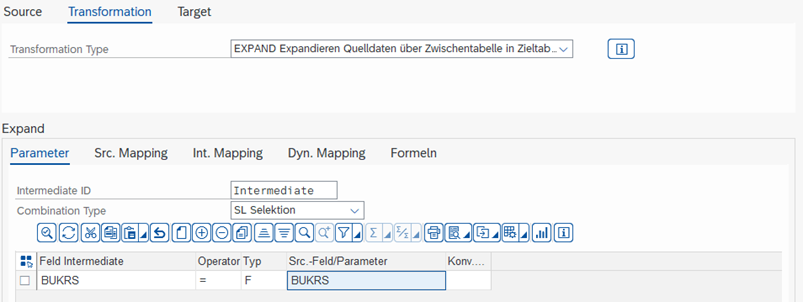
| Intermediate ID | Specification of the Shared Memory object to be used for the Expand |
|---|---|
| Combination Type | Select either SL Selection or XF Formula |
| Select Formula | (only for XF Formula) Formula by which the rows are to be selected Using key F4, an already created formula can be selected. Using key SHIFT+F2, you access the Formula Editor to change a selected formula or create a new one. |
Functionality of Selection Formulas If the result of the formula is true or "1", then the Intermediate row is used for the Source row, otherwise not.
Examples for Formulas
| 1=1 | Since the result is always true, all rows from the Intermediate are always used. |
|---|---|
| SRC-BUKRS = INT-BUKRS | Only the rows of the Intermediate are created per Source row where the field BUKRS is identical. |
| IF INT-GJAHR >= SRC-GJAHR THEN 1 ENDIF | Only the rows of the Intermediate are created per Source row where the field GJAHR is greater than or equal to the field GJAHR in the Source. |
Source Mapping Tab
In this tab, it is defined which field from the Source is mapped to which field in the Target. This is analogous to the MAP_FIELDS transformation.
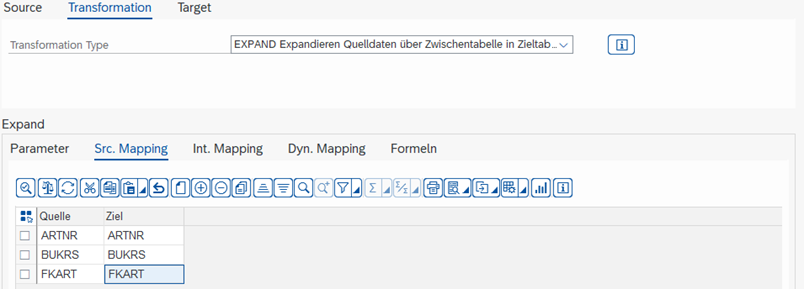
| Source | Field in the Source structure |
|---|---|
| Target | Field in the Target structure to which the Source field is to be assigned |
In the Source, there are 2 special functions, analogous to the MAP_FIELDS transformation:
- Fixed Value: If the text is in single quotes, for example '1', the entry is interpreted as a value instead of a field.
- Offset: If the field name is followed by a "+", for example FELDNAME+6(10), this is interpreted as offset and length: from "KS10000000001000", the first 6 characters are removed and the remaining 10 characters are used, in the example "0000001000". FELDNAME+6 uses everything after the 6th character, FELDNAME(4) uses the first 4 characters.
Intermediate Mapping Tab
In this tab, it is defined which field from the Intermediate is mapped to which field in the Target. This is analogous to the MAP_FIELDS transformation.
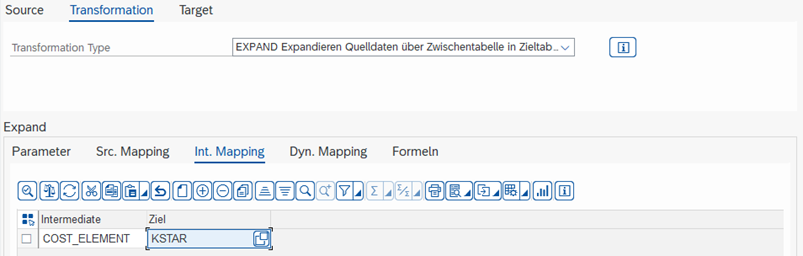
| Intermediate | Field in the Intermediate table |
|---|---|
| Target | Field in the Target structure to which the Intermediate field is to be assigned |
Dynamic Mapping Tab
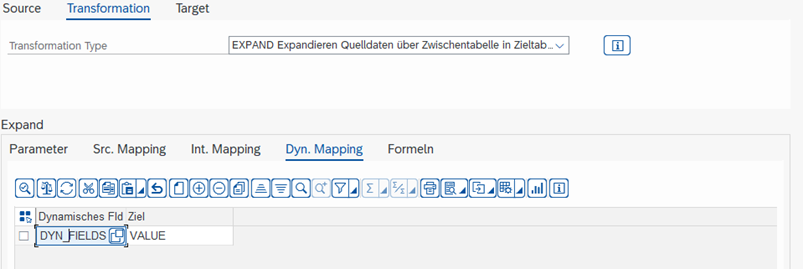
In this tab, it can be defined which field from the Source is mapped to the field in the Target depending on the value in the field in Intermediate.
Visual Example
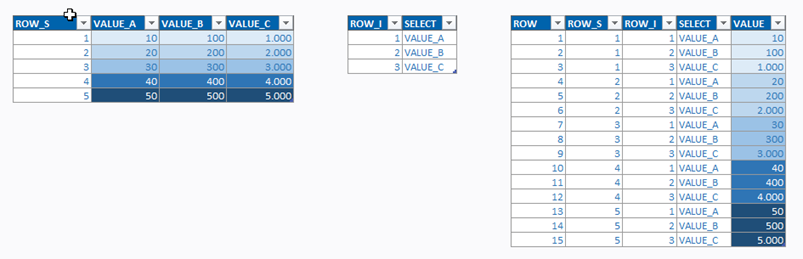
The values of the fields VALUE_A, VALUE_B, VALUE_C are transferred to the field VALUE. For Intermediate row 1, VALUE_A is used, for row 2 VALUE_B, and for row 3 VALUE_C.
Formulas Tab
In this tab, formulas can be defined whose result is written into a field in the Target, e.g., "Sales Quantity x Material Price".
Using the Pattern field, values can be iterated, e.g., 1-12, to avoid having to create a separate formula for each field from Value01 to Value12. During execution, each value from 1 to 12 is iterated, and each time the entry MONTH is replaced with the value.
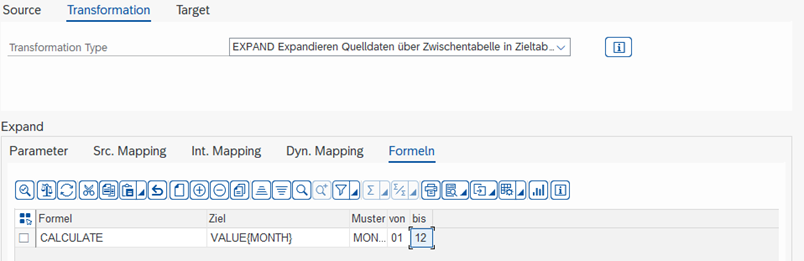
| Formula | Using key F4, an already created formula can be selected. Using key F2, you access the Formula Editor to change a selected formula or create a new one. |
|---|---|
| Target | Field to be changed in the Target. |
| Pattern | With the help of a pattern, several numbered fields can be filled with the same formula or the same Source field. Example: You use Pattern MONTH. In the Target field, VALUE_W_(MONTH) can now be entered to change, for example, fields VALUE_W_01 to VALUE_W_12. |
| From/To | From which value to which value the pattern is to be iterated. In the example, 1 to 12. |
The formulas are executed in the order of their creation.
Note To change the order of the formulas, you can move the row in the ALV via drag & drop to the desired position.